
Task Templates help standardize tasks in your projects, allowing you to quickly reuse them for consistent task setup.
To Create a Task Template:
- Navigate to the Template Tasks tab in Salesforce.
- Click the New button.
- In the pop-up window:
- Enter the Template Name.
- Fill in the other relevant details.
- Fields marked with an asterisk (*) are mandatory; others are optional.
- Click Save to finalize the template.
This ensures efficiency and consistency in task management across multiple projects.

To Apply Templates
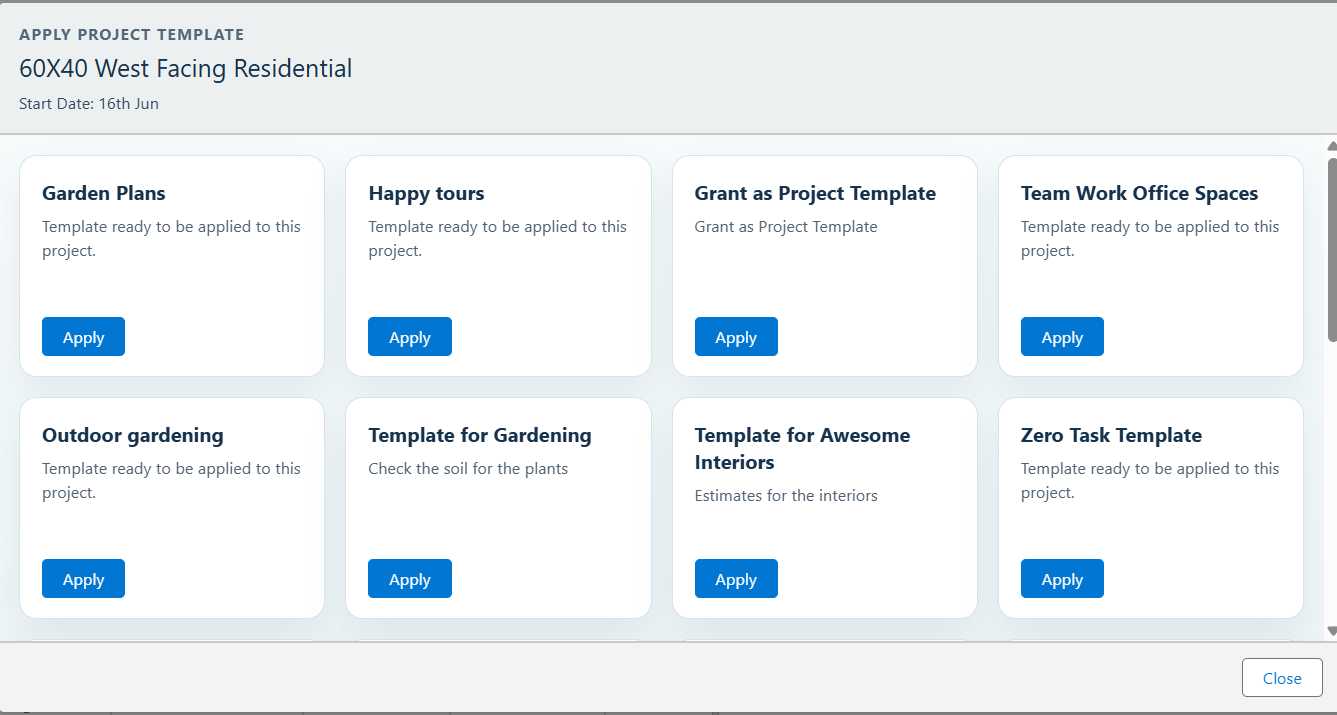
- Click the Apply Template button in the Gantt/Grid tab.
- The list of available templates will be displayed, as shown in the screenshot below.
- Click the Apply button to add the template tasks to the Project.
Once the tasks are applied, you can assign them to users.
To apply templates from a Project:
- On the Project details page, locate the Template Project field. Click the field, search for the required template, and select the template you want to apply.Once selected, the tasks from the template will be automatically applied to the Project.
Note:
- There is a field called "Template Project" where you can select a project name.
- If a project is selected for a template, that template can only be used to assign tasks within the selected project.
- If no project is selected, the template can be used for task assignments across any project.