
As an Approval Manager, you can approve users' time details with ease.
Time Entry and Approvals
Users can enter their time through TimeTracker or directly in the Salesforce application.
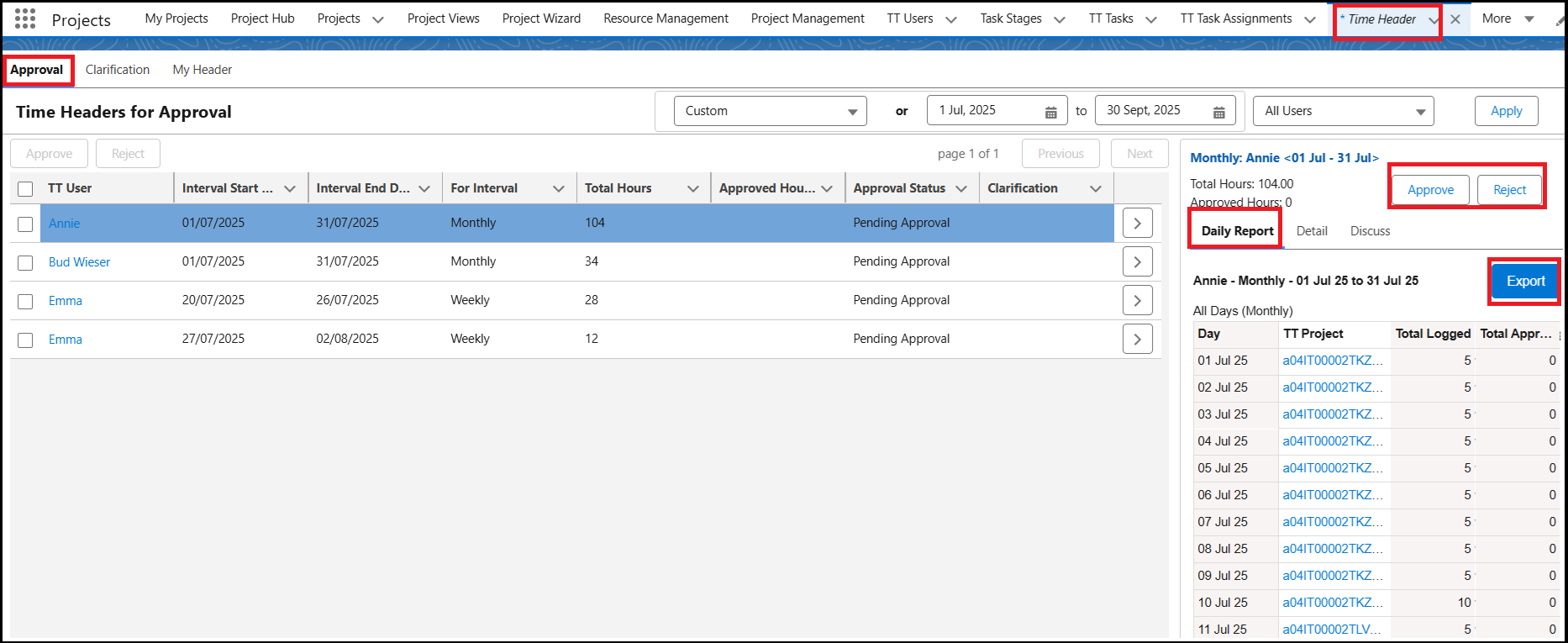
As a Reporting Manager, you can review user time entries in the Approvals tab under the Time Headers tab in Salesforce.
Time approvals can be managed on a Weekly or Monthly basis, depending on how the interval days are configured in the TimeTracker flags.
Setting the Interval Days
- Set the interval for time header generation using the
generate_headers_at_intervalflag by following the instructions here: - Monthly: Headers are generated for a monthly period.
- Weekly: Headers are created for a weekly period.
Once the flags are set, the headers are created based on the time entries made by the users.
To approve time entries:
Navigate to the Time Headers tab.
Go to the Approvals tab to view the time entries of users who report to you.
Select a row to open the user’s time details.
The details appear on the Daily Report page.
Review the entries, then click Approve to approve them or click Reject to reject them.
You can also reject the time entries of the users. Click here to know more.
Calendar Page: Click the string on the calendar page to navigate to the Approvals View page.
The view page has the sub-tab as
- Details,
- Time Summary,
- Time Details,
- Related,
- Time Reports.

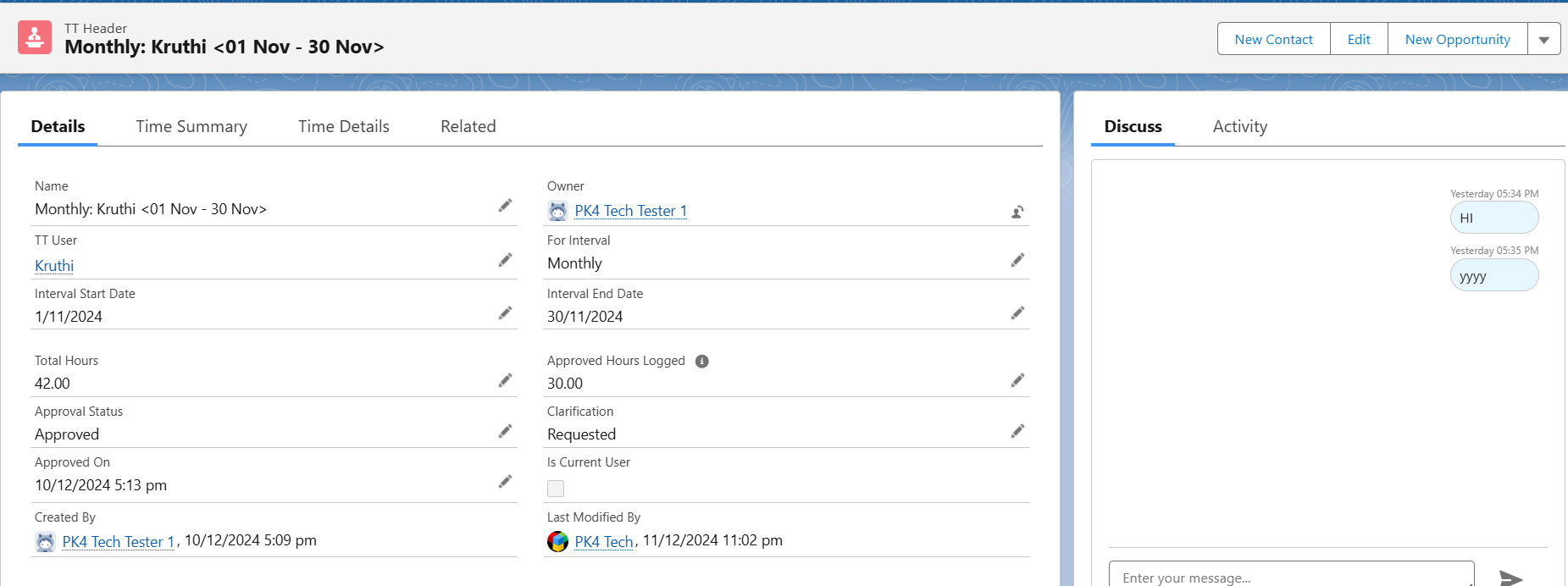
Details Page
- The Details Page provides an overview of the time entries submitted by the user.
- It also includes access to the Discuss Page, where you can:
- Add comments for clarification before approving time entries.
- Exchange feedback with the user, who can respond to your comments.
- Approve the time entries once your concerns are addressed.
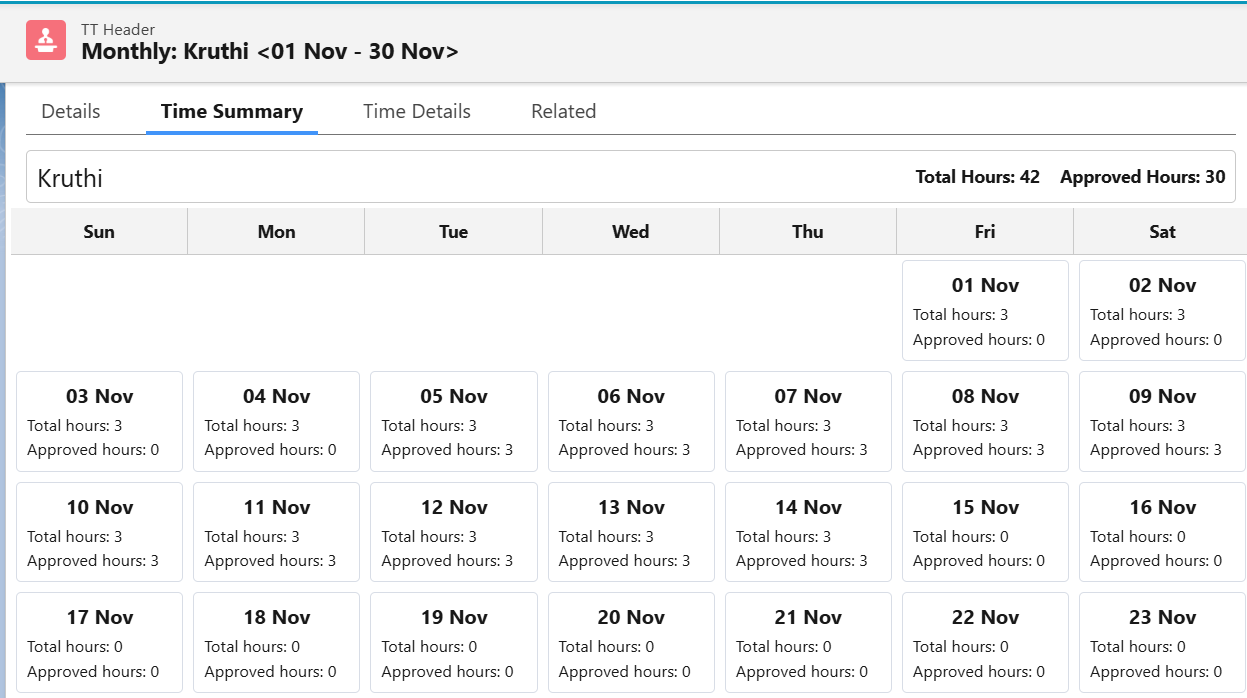
Time Summary:
This section displays the user's time details for each day, including the logged hours and approved hours.
Time Details Tab
- The time details list view has the detailed information about the time entries associated with the selected header.
Related Tab that features:
- Attachments: Files or images uploaded by the user when adding time entries.
- Comments Section: Displays the discussion history between you and the user, if any.
Time Reports:
- The Reports section provides detailed information about users' time entries, including logged time and approved hours in both Detailed and Summary views. You can also use the Export button to download the report data for further analysis or record-keeping.
This video explains more on the approval process.