
Gantt View
The Gantt View provides a timeline-based view of Tasks, showing details such as:
WBS Number
Start Date
Duration
Assigned Hours
Assigned Users
This view makes it easy to manage task dependencies, assignments, and schedules.
You can also assign the tasks to users or edit the assigned tasks.
Creating a New Task
You can create a new Task directly from the Gantt View:
Click the New Task button.
In the General tab, enter the Task details.
In the Resources tab, select users, assign hours, and click Add.
Add comments in the Comments section if needed.
Return to the General tab and click Save.
The Task will now be created and assigned to the selected users.
Apply Template
If you have the same set of tasks for different projects, you can create Template Tasks and apply them to projects.
This allows you to add multiple predefined tasks to a project with a single click and then assign those tasks to users.
- Click here to learn more about creating Template Tasks and applying them to projects.
Context Menu Options
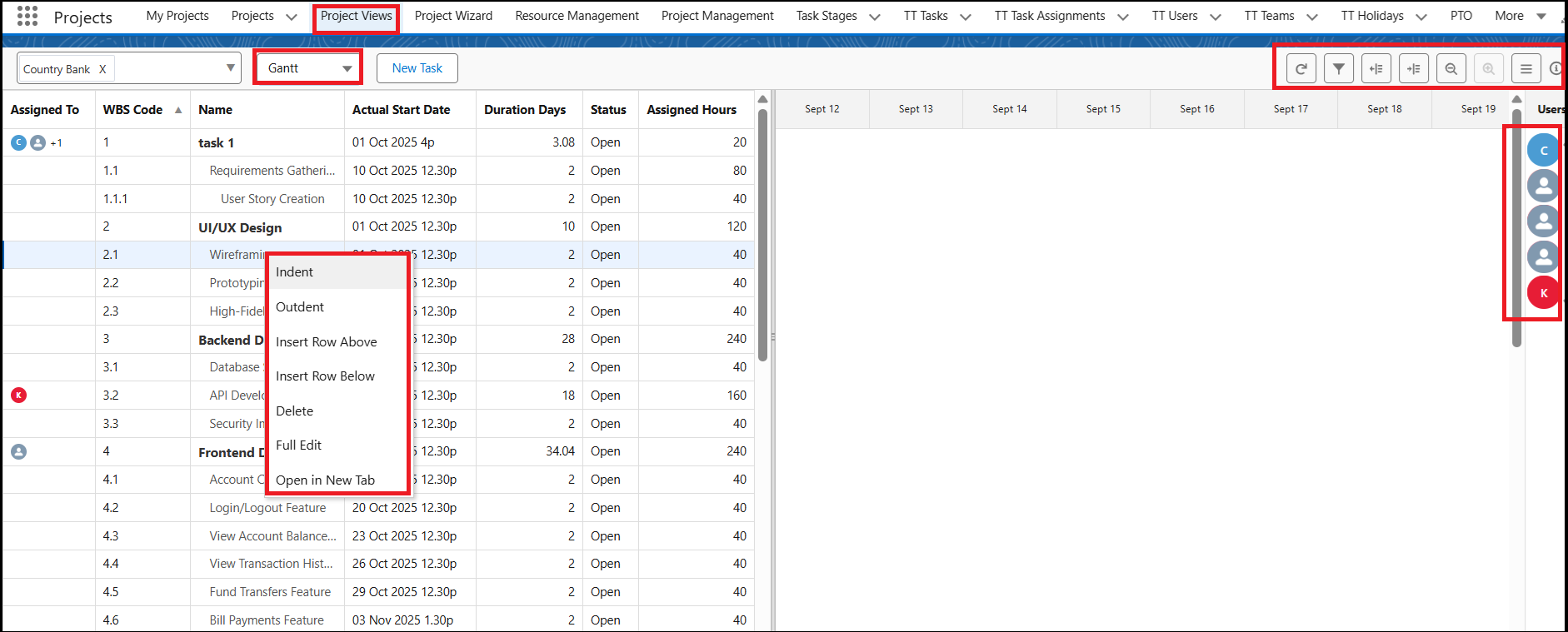
You can access the context menu by right-clicking on a Task name. The following options are available:
Indent – Mark the Task as a sub-task of another Task.
Outdent – Remove the Task from the sub-task list.
Insert Row Above/Below – Add a new Task row above or below the selected Task.
Delete – Delete the selected Task.
Full Edit – Open the entire Task row for editing, allowing multiple changes at once.
Open in New Tab – Open the Task in a separate tab for detailed editing.
The context menu icons are available in the top-right corner of the screen. You can click these icons to perform quick actions.
To add, remove, or rearrange the columns displayed on the Project View page, click the hamburger icon in the top-right corner of the screen.
Task Assignments
User icons appear in the Assigned To column for quick reference.
On the right-hand side, you’ll see user tiles. You can drag and drop a user tile onto a Task row to assign that Task to the selected user.
- Double-click on the Assigned To field of a task to view its assignment details.
- When you double-click the Assigned To field, a pop-up window will appear displaying the users to whom the task is assigned, along with their assigned hours.
- Click here to learn more about editing assigned tasks.
Predessor tasks
A predecessor task is a task that must be completed (or started) before another task can begin. Adding predecessors helps define task dependencies and ensures proper project scheduling.
You can quickly add a predecessor by:
- Dragging a connector line from the end of one task
- Dropping it onto the start of another task
- You can also connect tasks from start to start to create a dependency where both tasks begin simultaneously
This automatically creates a dependency between the two tasks.
Notes
- Adding predecessors helps in visualizing task flow and avoiding scheduling conflicts.
- Changes in predecessor tasks may automatically update the timeline of dependent tasks.
Conflicts
As a Manager, you create Projects, define Tasks, and set Task Dependencies. Whenever you make changes to a task’s Start Date or End Date, the system displays a Conflict Alert.
The Conflict icon available on the Project View page menu bar shows the number of conflicts detected.
When you click the icon, the system displays detailed information about each conflict.
- Click here to know how the conflicts work.