The Kanban tile provides a clear visual representation of task stages within a project. It allows you to quickly see how many tasks are completed, how many are currently in progress, which ones are new, and those that are actively being worked on. This helps teams track progress at a glance and manage workloads more effectively.
Creating a New Task Stage and Setting the Sequence in Kanban View
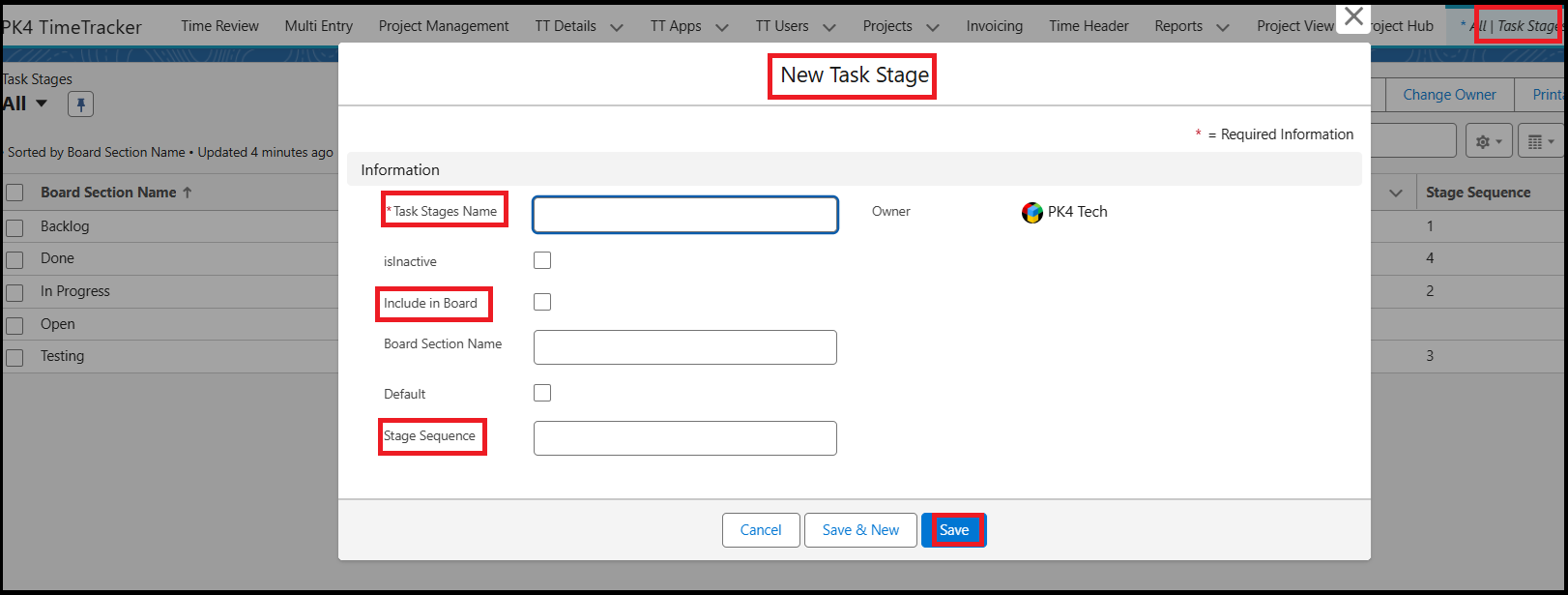
Currently, the available Task Stages are Open, In Progress, Backlog, Testing, and Done Tasks. You can create additional Task Stages based on your project requirements using the Task Stage object.
Steps to Create a New Task Stage
- Navigate to the Task Stage object.
- Click New.
- Enter the Task Stage Name.
- Enable the Include in Board checkbox if you want the stage to appear in the Kanban board.
- Enter the Board Section Name,
- Set the Sequence Number.
- Click Save.
Setting the Sequence Number
The Sequence Number determines the position of the Task Stage in the Kanban board.
- The stage will appear as a column in the Kanban view.
- The order of columns is arranged based on the sequence number assigned.
- Lower sequence numbers appear first, followed by higher numbers.
By setting the sequence number correctly while creating the Task Stage, the newly created stage will automatically appear in the Kanban board in the desired order.