
Project Rollups
Project Rollups automatically calculate and display consolidated values from all related Tasks and TimeTracker (TT) details at the Project level.
Rollup Fields Available in the Project Record
The following rollup values are maintained within the Project record:
- Project Estimated Hours
- Project Estimated Amount
Required Project Setup
To enable accurate rollup calculations, ensure the following details are entered while creating the Project:
- Project Hourly Rate
- Project Estimated Amount
- Project Estimated Hours
Once these details are configured, the system automatically performs rollup calculations based on time tracking and approved expenses.
Roll-Up Calculation for Time and Expenses
Time Tracked
- Project Estimated Hours are automatically reduced when users log time against the Project or its related Tasks.
- Only TT Details marked as Billable are considered for rollup calculations.
Expenses
- Project expense totals are automatically updated when users submit expenses and the expenses are approved.
How Project Rollups Work
When time is tracked against Tasks related to a Project and the Billable checkbox is enabled:
- The Project Hourly Rate is applied to the total billable hours recorded in TT Details.
- The calculated billable amount is deducted from the Project Estimated Amount.
- When expenses are submitted and approved, the approved expense amount is automatically deducted from the Project Estimated Amount.
- The logged billable hours are deducted from the Project Estimated Hours.
Benefits of Project Rollups
Project Rollups help Project Managers easily monitor:
- Remaining project budget
- Available project hours
- Overall project progress
This enables better planning, tracking, and management of remaining project activities.
Viewing Rollup Details
The rollup information is displayed in the Manage Project section of the Project record, as shown in the screenshot below.
This section displays:
- Project Estimated Amount
- Total Billable Amount
- Remaining Amount
In the Hours Details section, the following information is shown:
- Project Estimated Hours
- Total Billable Hours
- Remaining Estimated Hours
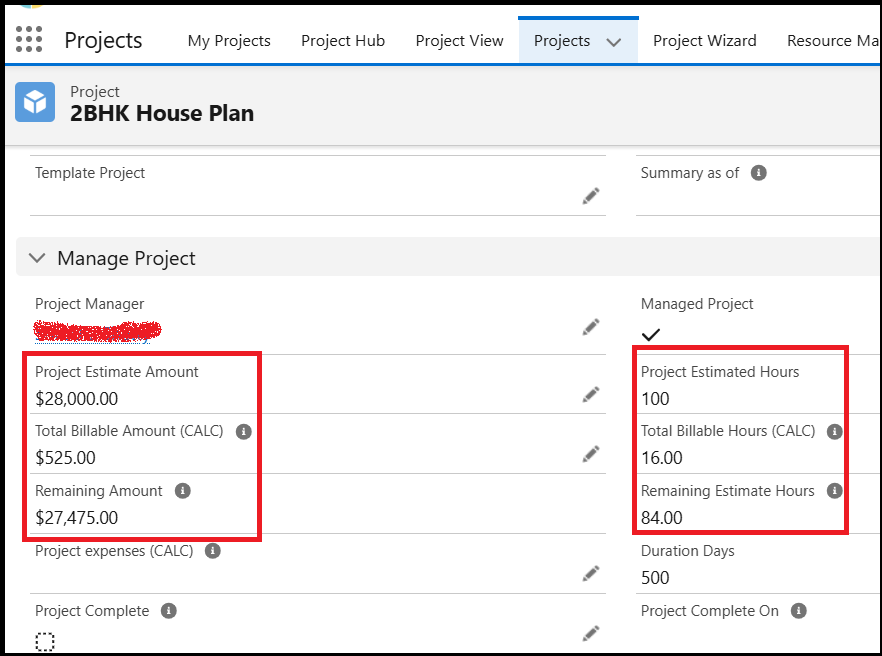
Note: The hours in the Remaining Amount and Remaining Estimate Hours are calculated only if the related TT details are marked as Billable.