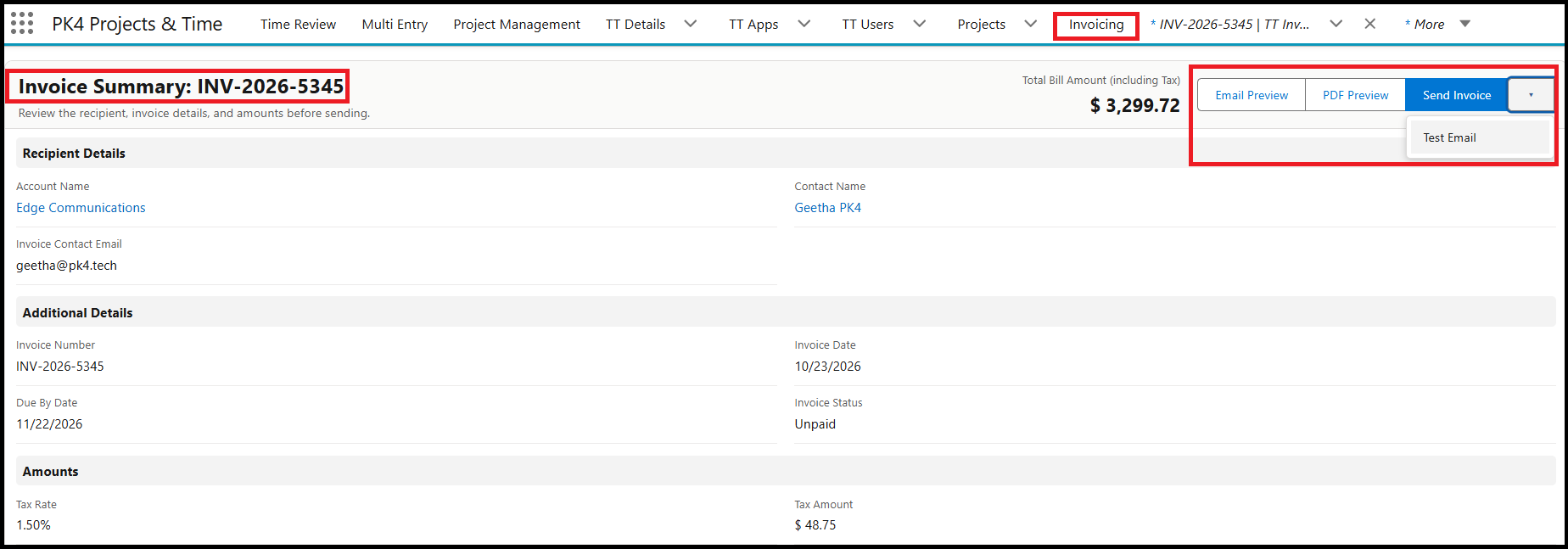
You can now review invoices before sending them to your customers using the new invoicing features in PK4 TimeTracker. You can preview the invoice in email format, view or download it as a PDF, and send a test email to verify that everything looks correct before sending the final invoice to your customer.
Follow the instructions below to learn how to use these features.
How to Preview and Test an Invoice
Navigate to the Invoicing tab.
Search for the invoice you want to review and click the Invoice Number to open it.
Click the Send Invoice button.
A window will open with the following options: Email Preview, PDF Preview, Send Invoice, and Test Email.
1. Email Preview
- Click Email Preview to open a window displaying how the invoice email will appear to your customer. Review the email content to ensure everything looks correct before sending it.
2. PDF Preview
- Click PDF Preview to view the invoice in PDF format. You can review the invoice details and use the available options to download or print the PDF.
3. Test Email
To verify how the invoice email and attachment will appear in the recipient's inbox:
Click the Test Email button.
Enter the recipient's email address.
Click the Send Invoice button in the test email window.
A test email containing the invoice attachment will be sent to the email address you entered. You can review the email and attachment before sending the actual invoice to your customer.
4. Send Invoice to the Customer
Once you have reviewed the email preview, checked the PDF, and completed any necessary testing, click Send Invoice to email the invoice to your customer.
Note: Make sure you have verified the invoice details and attachment before sending the final invoice to your customer.